When you work with videos often, the problem is not always editing. In many cases, the real trouble comes before that. One file is too big. Another one is in the wrong format. Sometimes you only need the audio. Sometimes you need subtitles. Sometimes you want to keep your own published video or an authorized file on your system and work on it later.
That is where most people waste time. You open one tool for conversion. Another for compression. One more for subtitles. Then, a separate downloader. It looks like a small job at first, but it keeps taking up your time in bits.
I spent time checking Need Keep from VidKitSoft because it is built exactly around these small daily media tasks. It is not trying to act like a big editing suite. It is presented as a desktop tool for video download, format conversion, audio extraction, subtitle work, and local file handling in one place. For many creators, that idea itself is useful.
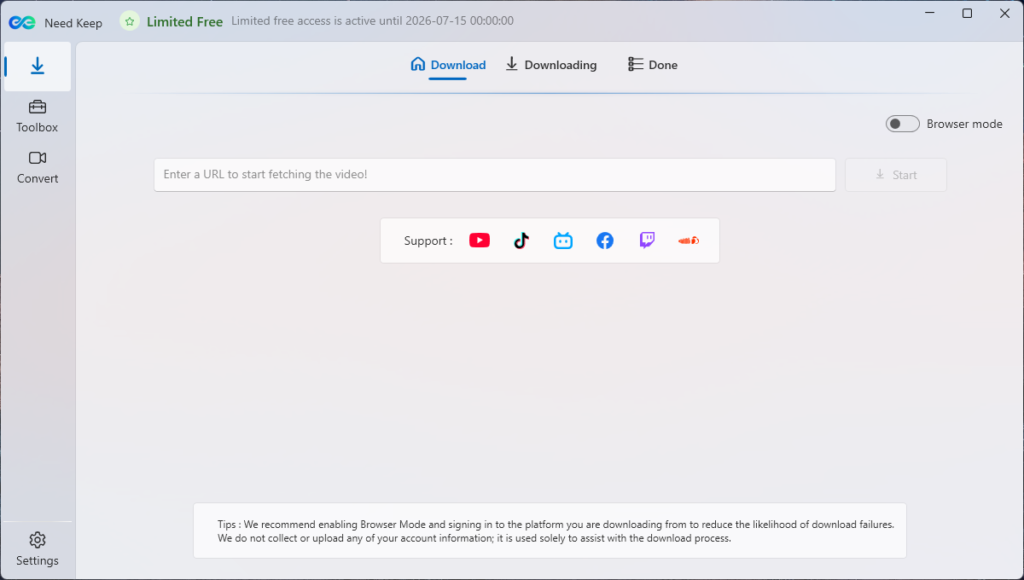
What Need Keep actually offers
Need Keep is a Windows desktop app. Its core focus is simple. You can convert video and audio files, reduce file size, extract audio, generate subtitles, and save authorized media from supported platforms. That makes it more of a creator utility tool than a full editing program.
This difference matters. Many people do not need a timeline editor every time. If your goal is only to turn a MOV file into MP4, pull audio from a lecture recording, create subtitles for a tutorial, or reduce file size before upload, a lighter tool feels much more practical.
From the way Need Keep is structured, the product is mainly built for creators, YouTubers, bloggers, students, teachers, and anyone who handles media files regularly. It is clearly made for the part of the workflow that comes before publishing, sharing, archiving, or repurposing content.
Quick feature overview
| Feature | What you can do |
| Video conversion | Change files to MP4, MOV, MKV, MP3, or WAV |
| Compression | Reduce file size for upload or sharing |
| Audio extraction | Pull audio from your video files |
| AI subtitles | Create and export subtitle files |
| Batch processing | Work on many files in one go |
| Authorized media saving | Keep content you own or can legally use |
My first impression
The first good thing here is focus. Need Keep does not look like software that wants to do everything. It stays around a few common tasks, and that is a plus. A lot of users do not want twenty editing panels. They just want to import a file, choose the right output, and finish the task.
That is the feeling I got while going through Need Keep. The tool seems built for speed and convenience. You can use presets if you do not want technical settings. At the same time, advanced users still get more control over codecs, bitrate, frame rate, resolution, and compression.
That balance is useful. A beginner can open it and do basic work without confusion. A more experienced user can push the settings further when needed.
You can see it here: https://www.vidkitsoft.com/?via=4wvu92qmt6
The feature that will attract most users
The biggest draw here is the free video converter side of the product. Video conversion is one of those tasks that sounds small until you need it often. A video from one device may not work well on another device. A file that plays fine on your system may not upload properly to a platform. A big MOV file may need to go to MP4 before you share it. In that kind of situation, a simple converter saves a lot of effort.
Need Keep supports common formats like MP4, MOV, MKV, MP3, and WAV. That covers most daily needs for creators and regular users. If you record videos, reuse media, share files with clients, or prepare clips for social media, this is the type of support you want.
Another thing I liked is the preset idea. The software offers presets for platforms and playback needs such as YouTube, TikTok, mobile playback, TV playback, and small file output. This is helpful for users who do not want to sit and think about every setting manually. In real life, most people just want the file to work properly and look good enough.
Compression makes this more useful than a basic converter
A lot of tools can convert. That alone is not enough now. File size is another daily problem, and Need Keep seems to understand that.
The tool includes smart compression, which means you can reduce the size by a percentage or aim for a target size. This can help in many real situations. Maybe you want to send a video on WhatsApp. Maybe you need to upload it to a form. Maybe you want to store it without wasting space. Maybe a client asks for a smaller version. These are normal problems, and a built-in compression option makes the tool more practical.
What makes this feature useful is not only that it shrinks the file. It also fits the normal creator workflow. You do not have to convert in one app and then hunt for another tool just to bring the size down.
Audio extraction is one of the most practical parts
Many people ignore this feature until they need it. But audio extraction is useful in a lot of simple cases. You may want a voice from a recorded tutorial. You may want the audio part from your own interview. You may want to save a lecture as an audio file and listen later.
Need Keep includes audio extraction as part of the main workflow, and that is good. You do not need a separate audio utility for a very basic task. If your work often moves between video and audio, this small convenience saves time.
This also makes the tool useful beyond YouTubers. Students, podcasters, bloggers, and teachers can also get value from it.
Useful cases for audio extraction
- Save voice from your own tutorial video
- Turn a lecture recording into an audio file
- Keep interview audio for notes or editing
- Pull sound from a webinar or presentation
AI subtitle generation gives it more value
Subtitles matter much more now because many people watch videos without sound. Subtitles also help viewers follow tutorials, interviews, classes, and explainers with less effort.
Need Keep includes AI subtitle generation from video or audio. It lets you recognize speech, edit the subtitle text, adjust timing, and export subtitle files. It also mentions options to burn subtitles into the video or keep them as soft subtitles.
That is a meaningful addition because subtitle work is usually annoying for small creators. If a tool can place conversion and subtitle creation in the same workflow, it removes one more friction point.
Still, this is one area where users should stay practical. AI subtitles help a lot, but they still need a manual check. Names, mixed language words, accents, and unclear audio can create errors. So I would treat this as a time-saving feature, not a fully final one-click result.
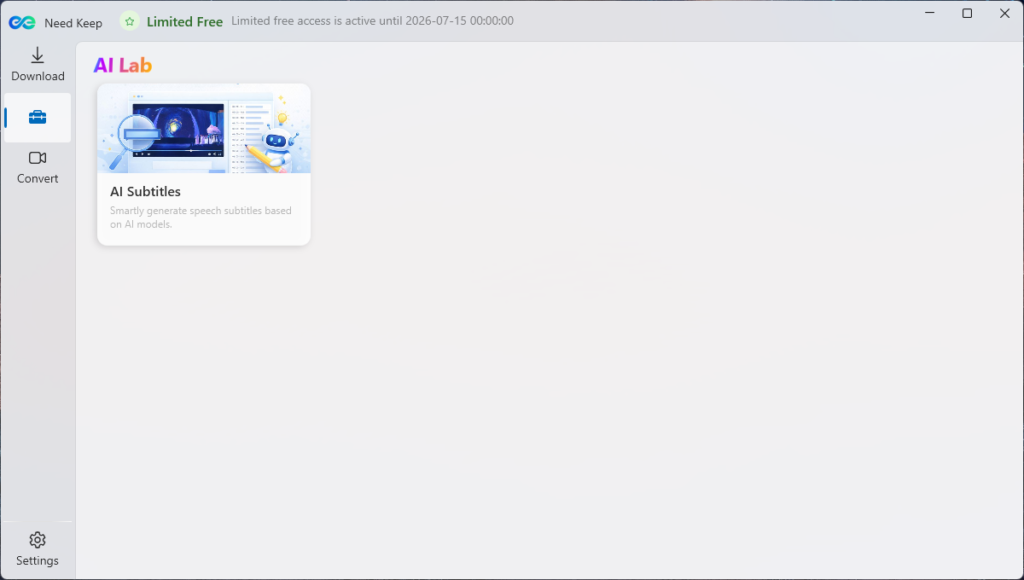
How to use some key features in Need Keep
Steps to convert a video
- Open Need Keep on your Windows system.
- Import your video file.
- Choose the output format, such as MP4 or MOV.
- Pick a preset if you want a fast setup.
- Change quality or size settings if needed.
- Start the export.
- Check the final file before uploading or sharing.
Steps to compress a large video
- Add the video file to the app.
- Open the compression option.
- Choose a percentage or target file size.
- Review the estimated output size.
- Run the export.
- Compare the final file size and quality.
Steps to extract audio from video
- Import the video file.
- Select audio extraction.
- Choose MP3 or WAV output.
- Start the process.
- Save the audio file in your folder.
Steps to create subtitles
- Add your video or audio file.
- Open the AI subtitle feature.
- Let the tool detect the speech.
- Check the subtitle lines carefully.
- Fix timing or text where needed.
- Export the file as SRT.
- Burn subtitles into the video if that is needed.
Steps to save authorized media
- Copy the media link you want to use.
- Paste it into Need Keep.
- Choose video, audio, or subtitles.
- Select the format and quality.
- Save the file to your system.
- Convert or organize it after that if needed.
Download and save features need careful use
Need Keep also positions itself as a video downloader and media saver from supported platforms. This is the part where the official policy matters a lot. The website clearly says the tool is for content you own or are authorized to access, save, or convert. It also says it does not bypass DRM, paywalls, or access controls.
That is the right way to look at this feature. It should be seen as a tool for your own files, your own uploads, content you have permission to use, or media you are legally allowed to keep and convert. It should not be presented as a piracy tool.
For a review article, this point is important because it keeps the post responsible and realistic. If you write about this feature from that safe angle, the article will look much more trustworthy.
How the workflow looks in real use
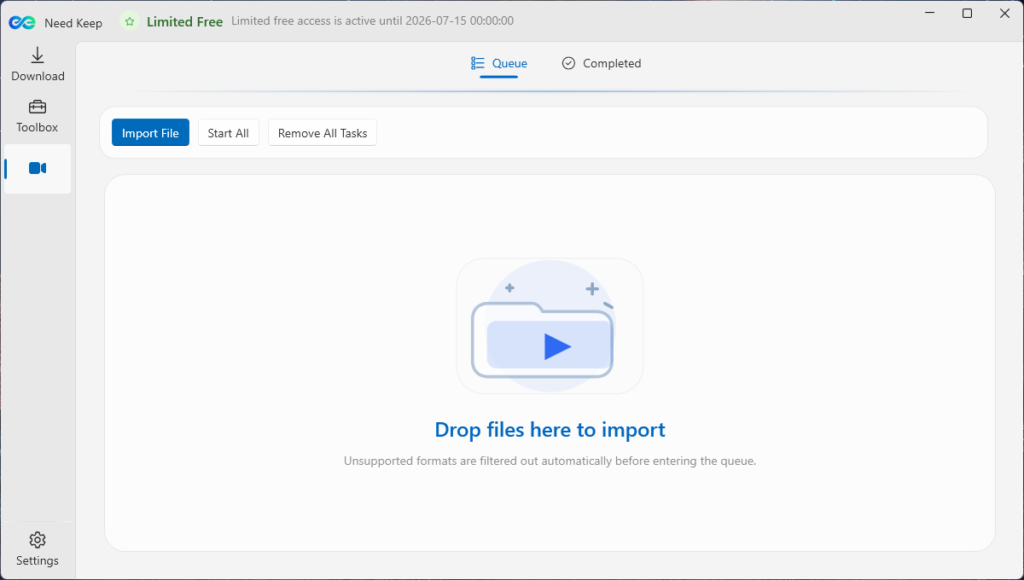
Need Keep breaks the work into two simple modes.
The first is the convert workflow. You import one file or many files. Then you choose what you want to do with them. That may be format conversion, audio extraction, compression, or manual tuning of output settings. After that, you export and review the results.
The second is the save workflow. You paste or open a link, choose the format and resolution you want, and save the file locally so you can work on it further.
This is one of the stronger parts of the product. The workflow sounds simple. It does not add too many steps, and that is exactly what users want in this category.
Who should use Need Keep?
Need Keep looks most useful for people who do regular media preparation work but do not need heavy editing every time. If you are a YouTuber, short video creator, blogger, student, teacher, or small business owner, this kind of software can fit into your routine quite easily.
It also makes sense for users who often deal with file size limits, different device formats, subtitle needs, or audio extraction. In those cases, a desktop tool can feel much smoother than switching between many browser tools.
But it is also fair to say what it is not. Need Keep is not a replacement for full editing software. If your work involves serious timeline editing, motion graphics, color grading, or advanced post-production, this will not replace that setup.
Best fit for these users
- YouTubers and short video creators
- Bloggers who also make tutorial clips
- Students with lecture recordings
- Teachers with class videos
- Small teams that need quick media prep
What I liked most
What stands out most is convenience. Need Keep combines several small tasks that usually get scattered across different apps and websites. That makes it attractive for busy creators who want less friction.
The preset support is useful. The compression side adds real value. Audio extraction is practical. Subtitle support makes it more relevant in 2026, when captions are part of normal content publishing. The advanced settings are also a good touch for users who want extra control without losing the easy mode.
Main highlights
- One tool for many small media tasks
- Good preset support for fast output
- Compression is useful for sharing
- Audio extraction is simple
- Subtitle support adds more value
What could be better
The main limit right now is platform support. The website shows Windows availability, while the macOS version is still under development. That means Mac users have to wait.
Another point is that users should still check the subtitle output before publishing. AI helps, but it does not remove the need for a final review. Also, people who need a full editor should not confuse this tool with an editing suite.
Things to keep in mind
- Mac version is not ready yet
- AI subtitles still need checking
- This is not a full editing suite
- Download features must be used carefully
Final verdict
Need Keep looks like a useful free video converter for people who handle media files often and want a cleaner workflow. Its real strength is not just video conversion. The bigger advantage is that it combines conversion, compression, audio extraction, subtitle work, batch processing, and authorized media saving in one desktop app.
That makes it a practical choice for creators who want to finish small but important media tasks without bouncing between multiple tools.
If your work often includes preparing videos for upload, reducing file size, extracting audio, or creating subtitles, Need Keep is worth checking.
FAQs
Is Need Keep only a free video converter?
No. Video conversion is a big part of it, but it also covers compression, audio extraction, subtitle generation, batch processing, and authorized media saving.
Can Need Keep convert videos to MP4?
Yes. It supports common formats like MP4, MOV, MKV, MP3, and WAV, which cover most normal creator needs.
Should users check the subtitles after generation?
Yes. That is always a good idea. AI subtitles save time, but names, accents, and mixed language audio can still need manual correction.
Is the download feature safe to mention in the review?
Yes, but only with the correct angle. It should be described as a feature for content the user owns or is authorized to access, save, or convert.


