A PDF can be completely finished and still create one last problem. The document is sitting on your laptop, but the person on the other side asks for a link rather than another attachment.
That request can mean very different things. A client may simply want a page where the PDF opens in a browser, while a developer may need the actual PDF URL for a download button. Someone reviewing a proposal may need comments and access controls instead of either of those.
Email also stops being convenient once the file grows. Gmail currently allows up to 25 MB of attachments for personal accounts. When the total goes beyond that limit, Gmail removes the normal attachment and adds the file through Google Drive instead.
This is why choosing a PDF host only by storage space misses the real problem. The better question is what should happen when somebody clicks the link.
Quick answer: Which PDF hosting site is best?
For a finished PDF that needs both a normal sharing page and access to the actual hosted file, Media2URL is one of the more direct options because the same upload can return a direct PDF URL and a separate share page. If the PDF already belongs inside a cloud folder, Google Drive or Dropbox will normally make more sense.
Adobe Acrobat becomes more useful when somebody needs to review and comment on the document. OneDrive fits naturally into Microsoft 365 workflows, while Smallpdf is useful when the PDF is already being compressed or processed before sharing.
| PDF hosting service | Best use | Current useful data | What the recipient gets |
|---|---|---|---|
| Media2URL | Direct PDF URL + share page | Free: 2 MB PDF upload, 500 MB storage | Direct file URL or viewer/share page |
| Google Drive | Familiar cloud sharing | 15 GB free storage, up to 5 TB per general file | Google Drive preview/share page |
| Adobe Acrobat | PDF review and comments | 5 GB free cloud storage | Browser document/review page |
| Dropbox | PDFs inside shared project folders | 2 GB free storage, up to 2 TB per file | Dropbox shared-file page |
| OneDrive | Microsoft 365 workflows | 5 GB free storage, up to 250 GB per file | OneDrive preview/share page |
| Smallpdf | PDF processing followed by sharing | Free PDF Share tool, free account used for persistent sharing | Smallpdf share link |
| Tiiny Host | Publishing a PDF like a web page | Free PDF limit: 0.5 MB | Hosted web-style PDF link |
| PDFHost.io | Quick hosting without signup | Free, no email or account required | Public or private PDF page |
The numbers above come from the services’ current documentation and product pages rather than third-party comparison sites.
PDF hosting is not the same as simply storing a PDF online
A PDF saved on your computer has no public URL. The document first has to be uploaded somewhere that can serve it when another person opens a link.
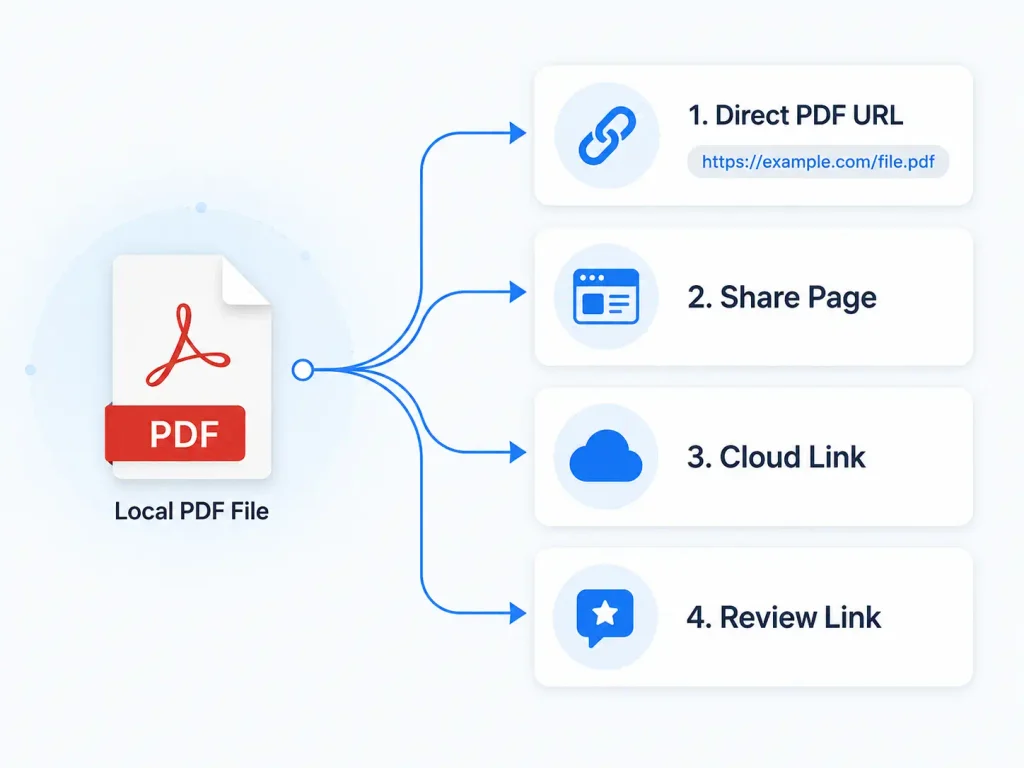
What happens after the upload depends heavily on the service.
You may receive:
- a direct URL that points to the PDF file itself
- a normal share page built for people to open
- a cloud-storage page with permissions and account controls
- a review page where other people can leave feedback
Those links may all eventually lead to the same document, but they are not interchangeable.
Consider a company brochure. The marketing manager wants to send it through WhatsApp, while the web developer needs a URL for the website’s Download Brochure button.
The marketing manager mainly cares that the brochure opens without confusion. The developer may care more about whether the URL points to the actual PDF file.
Now change the situation again. A designer sends the brochure to a client before publication, and the client needs to mark corrections on several pages.
That is no longer just a hosting problem. Review and commenting become part of the decision.
The word link therefore tells you very little by itself. The useful part is what that link does.
The LINKS Test: How I compare PDF hosting services
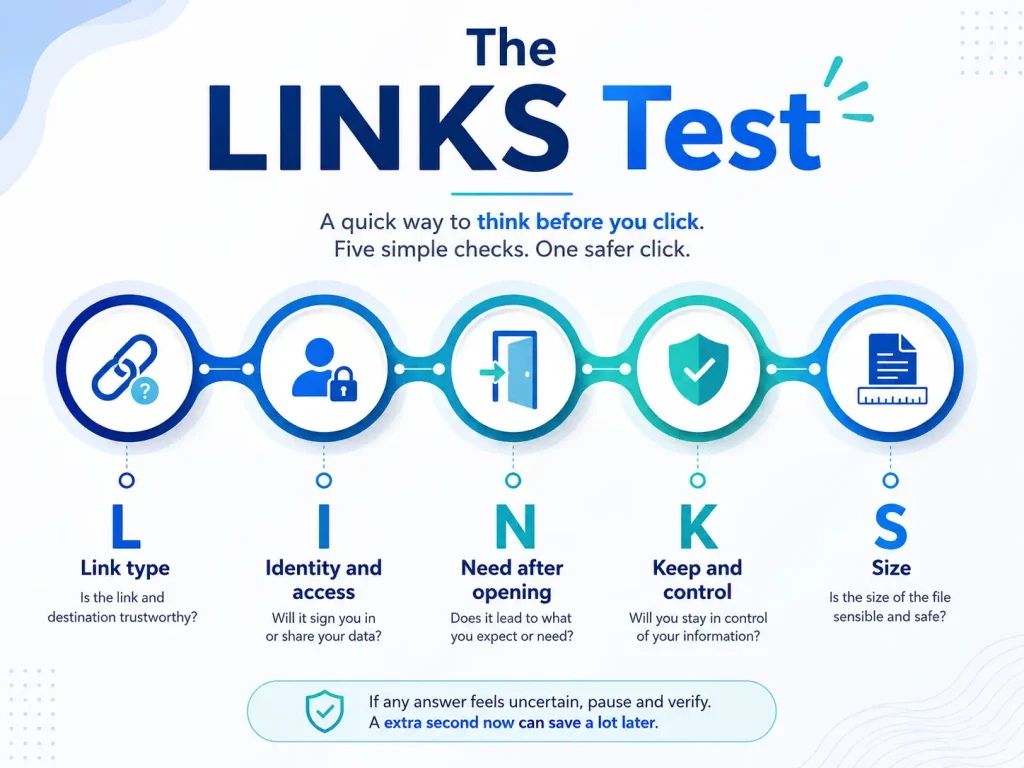
Rather than choosing a platform because it offers the biggest free storage number, I would check five things.
L — Link type
Start with the output.
A direct PDF URL can be useful inside websites and applications. A share page is usually easier when another person simply needs to read or download the document.
Cloud-storage links introduce another layer because the recipient opens the file inside Google Drive, Dropbox, or OneDrive rather than reaching the raw hosted file directly.
I — Identity and access
The second question is who can open the document.
Google Drive, for example, supports an Anyone with the link setting. Google says people with that link can access the file without signing into a Google Account. It also notes that the owner’s name and email can be visible when a file is shared through a link.
Restricted access behaves differently. If the recipient does not have permission, Google can show the familiar You need access message.
That is why access settings are not a small detail. They determine whether the link actually works for the person receiving it.
N — Need after opening
Next, decide what the recipient needs to do.
Someone may only need to read the PDF. Another person may need to download it, while a client could be expected to review the document and leave comments.
Adobe Acrobat is a good example of why this matters. Adobe currently lets recipients open a normal shared document through a browser without signing in. When commenting is enabled, recipients can sign in to review and add comments.
That is a different workflow from a basic file-hosting link.
K — Keep and control
Some links are needed for an hour. Others may remain inside a website for years.
For longer-lived documents, useful questions include whether the PDF can be replaced later and whether the existing URL can stay the same.
Access controls matter here as well. Dropbox, for example, lets customers on several higher-tier plans add shared-link expiration dates and disable downloads. Dropbox Professional and several business plans also support passwords for shared links.
S — Size
Maximum file size is the easiest number to compare, but it should usually come last.
Google Drive supports general files up to 5 TB, assuming the account has enough storage. OneDrive supports individual files up to 250 GB, while Dropbox states a maximum individual file size of 2 TB.
Those numbers are far beyond the size of a normal brochure or report. For most PDF-sharing jobs, access behaviour and link type become important much earlier.
Verified PDF hosting limits and features
Here is a more detailed factual comparison.
| Service | Free storage / allowance | Published PDF or file limit | Can people view without an account? | Useful control |
|---|---|---|---|---|
| Media2URL | 500 MB storage, 2 GB bandwidth | 2 MB PDF/file on Free | Depends on chosen privacy setting | Privacy, expiry, direct URL/share page |
| Google Drive | 15 GB shared across Drive, Gmail and Photos | Up to 5 TB for general files | Yes with Anyone with the link | Viewer, Commenter, Editor |
| Adobe Acrobat | 5 GB cloud storage | Share-link page does not state one universal PDF sharing cap | Yes for viewing | Review/comment permissions |
| Dropbox | 2 GB on Basic | Up to 2 TB per file | A non-user can preview a shared link | Paid link passwords/expiry |
| OneDrive | 5 GB free cloud storage | Up to 250 GB per file | Depends on share-link/account settings | Anyone/specific-person sharing |
| Smallpdf | Account-based document storage | No specific Share PDF size cap stated on its Share PDF page | Share link created after account step | Persistent sharing from account |
| Tiiny Host | 1 live project on Free | 0.5 MB PDF on Free | Yes for public hosted project | Password and other controls on paid plans |
| PDFHost.io | Service states free hosting | No size limit stated on homepage | Yes | Public or private unique link |
The services do not publish their limits in the same way, which is why leaving unknown values blank is more accurate than inventing comparable numbers.
1. Media2URL — Best for a direct PDF URL and a separate share page
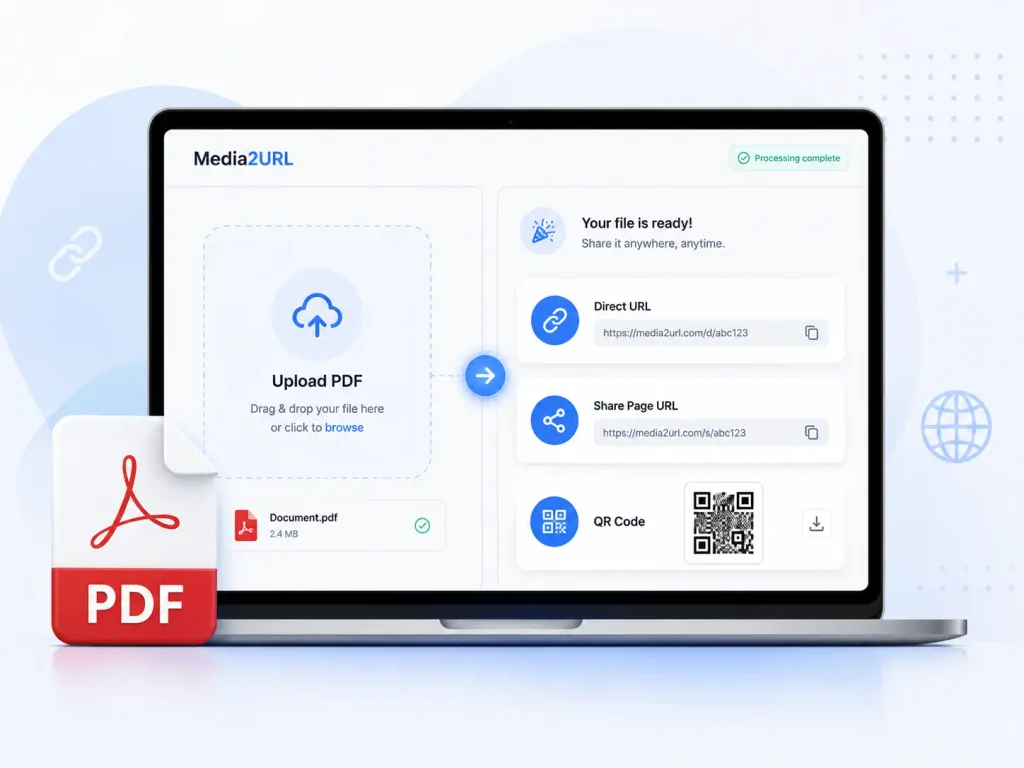
Media2URL is closest to the literal workflow behind searches such as PDF to link.
You already have the finished document. Instead of placing it inside a cloud folder first, you upload the PDF and generate the URL formats you need.
The current PDF to link tool provides both a direct PDF URL and a separate share page URL. The same upload can also return QR, HTML, Markdown, and BBCode formats.
That difference between direct and share links is where the service becomes useful.
What you currently get
Media2URL lists these outputs for hosted PDFs:
- Direct URL for raw PDF access and file-based workflows
- Share page URL for clients, chats, documents, and support tickets
- QR code for quick mobile access
- HTML, Markdown, and BBCode for supported publishing workflows
The Free plan currently includes 500 MB storage, 2 GB bandwidth, and up to 300 monthly uploads. Free PDF and general-file uploads are capped at 2 MB.
Higher plans increase the PDF/file upload size substantially:
| Media2URL plan | PDF/file upload limit | Storage | Bandwidth |
|---|---|---|---|
| Free | 2 MB | 500 MB | 2 GB |
| Plus | 100 MB | 25 GB | 250 GB |
| Pro | 256 MB | 100 GB | 1 TB |
| Business | 1 GB | 250 GB | 3 TB |
Media2URL also states that Pro users can replace a file without changing its URL. That becomes useful when a brochure or report is already linked from several places and later needs an updated version.
Where this works well
A practical case would be a company brochure that needs to move through two different workflows.
The client may want a normal page where the PDF can be opened easily. The developer may want the direct hosted PDF path for a website button.
Using one upload for both outputs avoids treating those as the same type of link.
Main limitation
The Free plan’s 2 MB PDF limit is small.
A simple text PDF can fit easily, while an illustrated brochure can cross that limit quickly. If free storage and large upload capacity matter more than direct-link behaviour, Google Drive will normally be more generous.
Best for:
- website PDF links and download buttons
- finished brochures, reports, guides, and other PDFs that need their own URLs
2. Google Drive — Best for familiar everyday sharing
Google Drive remains one of the easiest choices when the PDF already belongs inside your normal Google workflow.
Every Google Account currently includes up to 15 GB of storage at no charge, shared across Google Drive, Gmail, and Google Photos. Google Drive supports general files up to 5 TB, provided the account has enough available storage.
For most PDFs, file size is therefore unlikely to be the problem.
Sharing options
Google Drive provides three familiar roles:
| Role | View | Comment | Edit |
|---|---|---|---|
| Viewer | Yes | No | No |
| Commenter | Yes | Yes | No |
| Editor | Yes | Yes | Yes |
Google also allows owners to restrict downloading, printing, and copying for viewers and commenters through advanced sharing settings.
For public-style sharing, Anyone with the link allows somebody to access the file without signing into Google. Restricted files remain available only to people who have permission.
The permission problem is real
The part I would check first is not storage. It is access.
A link can open perfectly on the owner’s laptop because that browser is already signed into the account that owns the PDF.
The recipient may see something completely different.
Google explicitly explains that a You need access message appears when the viewer does not have permission.
For an important client or submission link, testing the URL in a private browser window makes much more sense than opening it again from the owner account.
One privacy detail many people miss
When you share a Google Drive file through a link, Google says your name and email address are visible as the owner.
That may be completely fine for normal work. It is still worth knowing when the goal is anonymous or white-labelled public sharing.
Best for:
- PDFs already stored alongside other Google Drive files
- long-term sharing where collaboration and familiar permissions matter
3. Adobe Acrobat — Best for client review and comments
Adobe Acrobat makes more sense when the PDF is not actually finished yet.
The document may be ready enough to show, but another person still needs to approve wording, mark corrections, or leave feedback.
Adobe’s current web sharing system lets recipients open a shared document in a browser without signing in when it is being shared for viewing. When comments are enabled, recipients can sign in to review and add their comments.
Adobe also lets the sender choose access levels. Current options include public links, organisation-only access for eligible enterprise users, and invited-only sharing for subscription users. Adobe specifically warns against using public links for sensitive information.
Current storage
Adobe currently provides:
| Acrobat storage option | Cloud storage |
|---|---|
| Free | 5 GB |
| Acrobat Pro | 100 GB |
| Acrobat Export PDF | 20 GB |
| Acrobat PDF Pack | 20 GB |
Where Adobe is stronger
Consider a 30-page brochure being sent to a client.
The client needs to identify a wrong price, point out an old image, and approve the final version. A review-oriented link is more useful than repeatedly returning edited PDF attachments.
Adobe is therefore not simply competing with a file host. It is solving the feedback stage around the PDF.
Where Adobe is unnecessary
If all you want is:
Upload PDF → copy link → send it
the review environment can be more than you need.
Best for:
- design reviews and client approvals
- PDFs where comments and document feedback are part of the workflow
4. Dropbox — Best when the PDF is part of a larger shared folder
Dropbox is strongest when your PDF does not live alone.
A client project may contain the final PDF along with image assets, spreadsheets, and working files. Keeping all of those together can be more useful than creating a separate host only for the document.
Dropbox Basic currently includes 2 GB of free storage. Dropbox says the maximum file size it supports is 2 TB, although all uploaded files still have to fit inside the storage available on the account.
For very large files, Dropbox recommends the desktop app or API. It warns that browser uploads above 375 GB may time out or get interrupted.
That detail is not relevant to an ordinary PDF, but it shows why maximum platform capacity and practical browser behaviour are not always the same thing.
Sharing without a Dropbox account
Dropbox says someone without a Dropbox account can preview content through a shared link.
Higher-tier plans add more control. Dropbox Professional and several business plans support:
- password-protected shared links
- shared-link expiration dates
- disabling downloads from a shared link
- tighter control over who can access the link
Real-world fit
Suppose an agency folder contains:
brochure.pdfbrand-assets.zipcampaign-copy.docxwebsite-images.zip
In that situation, moving only the brochure to another hosting service can create unnecessary duplication. Dropbox makes sense because the PDF remains part of the same client workspace.
Best for:
- project folders that contain PDFs alongside other files
- users who already manage client or team assets inside Dropbox
If you regularly work with reports, ebooks, invoices, or downloaded documents, it also helps to manage and organise PDF files properly so that the shared version does not get mixed up with older copies.
5. OneDrive — Best for Microsoft 365 users
OneDrive follows the same basic cloud-storage logic as Google Drive, but it fits naturally into Microsoft’s ecosystem.
A free Microsoft account currently includes 5 GB of cloud storage. Microsoft 365 Personal includes 1 TB of cloud storage, while Family provides 1 TB for each person covered by the subscription.
Microsoft currently supports individual OneDrive files up to 250 GB.
That number is much larger than most PDFs will ever need.
The interesting PDF limitation
There is a separate preview limit that is much more relevant.
Microsoft says PDF previews are not generated for PDFs larger than 100 MB.
So a 140 MB illustrated catalogue can exist inside OneDrive even though it does not receive the same PDF preview behaviour as a smaller file. You can check this catalogue maker that might come in useful to you.
This is exactly why I would not rank hosts only by maximum upload size.
Sharing options
OneDrive can support links for broad access or selected people. The exact options can also depend on whether you are using a personal account or an organisation-managed Microsoft account.
For work and school users, administrators may restrict external sharing. That makes OneDrive particularly good inside an existing Microsoft organisation but sometimes less predictable when documents need to move outside it.
Best for:
- teams already working with Word, PowerPoint, Outlook, and Microsoft 365
- PDFs that belong inside an existing OneDrive project structure
6. Smallpdf — Best when you are already processing the PDF
Smallpdf approaches sharing from the PDF side rather than the general cloud-storage side.
Its current Share PDF tool lets you upload a document and generate a shareable link. The published workflow asks you to upload the PDF, select Share, create a free Smallpdf account, and then copy the document link.
Smallpdf says documents saved to a free account can remain shareable for as long as needed. It also states that file transfers use TLS encryption and that the company is ISO/IEC 27001 certified.
Why that workflow can be useful
Suppose a PDF is too large or needs work before sharing.
You open Smallpdf to compress or process it. Once the final version looks right, being able to create a link from the same PDF-focused environment avoids downloading it and uploading it again somewhere else.
That convenience is the strongest reason I would choose Smallpdf here.
Where it is weaker
Smallpdf is not trying to replace a broad storage library like Drive or Dropbox.
If the PDF is part of a large project containing videos and working files, a general cloud platform may be easier to manage.
Best for:
- PDFs that need processing before they are shared
- people who already use Smallpdf’s document tools
7. Tiiny Host — Best for publishing a PDF like a simple web page
Tiiny Host is different because the link feels closer to publishing than traditional cloud storage.
A PDF can be uploaded as a project and given a unique hosted link. The service also supports embedding, while paid plans add features such as QR codes.
The limitation is very clear on the Free plan.
Current Tiiny Host limits
| Plan | Maximum PDF/project file size | Active projects | Monthly visitors |
|---|---|---|---|
| Free | 0.5 MB for PDF | 1 | 5,000 |
| Tiny | 25 MB | 1 | 10,000 |
| Solo | 75 MB | 5 | 100,000 |
| Pro | 10 GB | 15 | 500,000 |
Tiiny Host also lists a Pro Max tier with a 2 TB file limit and unlimited projects.
The Free plan is therefore suitable only for very small PDFs. If a free PDF exceeds 0.5 MB, Tiiny Host says it may be shown through a temporary preview that is taken down within an hour unless the account is upgraded.
Paid controls
Tiiny Host currently lists features such as:
- password protection and analytics
- custom domains and email collection
- disabling PDF downloads
- removing Tiiny Host branding on suitable plans
Where this fits
A freelancer sending a portfolio through a clean hosted URL has a different requirement from somebody storing a PDF inside a team folder.
Tiiny Host can make sense when presentation and web-style publishing matter more than storage capacity.
Best for:
- portfolios and documents being presented like web content
- users who value a hosted web-style link and custom-domain options
8. PDFHost.io — Best for simple hosting without creating an account
PDFHost.io removes much of the account workflow.
The service currently states that PDF hosting is free and does not require an account or email address. Documents can be published as public or private.
Private documents are accessible through their unique link, while public documents can include metadata that helps them appear in the site’s searchable document library. The service also lets visitors view the PDF through the website or download it.
What I like about this approach
It suits a simple case.
An event organiser has a public programme PDF and needs one link to distribute. There is no client review, shared folder, or wider collaboration requirement.
A dedicated host can be enough.
What you should know
The current PDFHost.io homepage does not publish a specific maximum PDF upload size. I would rather leave that number unstated than copy an unofficial limit from another website.
That is also why PDFHost.io is harder to compare with Drive or OneDrive using only a storage table.
Best for:
- simple public or private PDF hosting
- users who do not want to create another account just to host one document
Which PDF hosting site should you actually choose?
The easiest decision comes from matching the service to the job.
| What you need | Best fit from this list | Why |
|---|---|---|
| Actual PDF URL + separate share page | Media2URL | Built around both link types |
| Familiar general sharing | Google Drive | Large free storage and familiar access controls |
| Client review and comments | Adobe Acrobat | Review workflow is built around PDFs |
| PDF inside a larger shared folder | Dropbox | Stronger project/file organisation |
| Existing Microsoft workflow | OneDrive | Fits Microsoft 365 accounts and teams |
| Process PDF before sharing | Smallpdf | PDF tools and sharing remain in one workflow |
| Publish PDF like a web page | Tiiny Host | Hosted-project style presentation |
| Quick hosting without signup | PDFHost.io | No account or email required |
This is why declaring one universal winner would be misleading.
A company developer and a client reviewer can receive the same PDF while needing completely different hosting behaviour.
Direct PDF URL vs share page: which one should you choose?
This is the most important difference in the entire article.
A direct PDF URL points to the hosted document itself. A share page points to a normal web page around that document.
The direct option is usually more useful when software or a website is consuming the link.
Typical cases include:
- a website’s Download Brochure button
- an application field that expects a PDF URL
- documentation that needs the actual hosted file
- another web workflow that needs direct file access
A share page makes more sense when another person is opening the link.
Examples include:
- sending a proposal to a client
- putting a document inside a support conversation
- sharing a PDF through a team chat
- sending a brochure through a normal message
Media2URL currently makes this distinction explicitly. Its PDF tool describes the direct URL as raw document access and the share page as the better option for client sharing, chats, documents, and support workflows.
A raw link is therefore not automatically better because it looks cleaner or more technical.
The right link is the one that fits whatever opens it next.
Do not test a PDF link only from your own account
This is one of the easiest ways to send a broken cloud link.
You upload the PDF to Drive and copy the URL.
Then you click it.
Everything opens, so the job appears finished.
The problem is that you are already signed into the account that owns the document.
Google’s own support documentation explains that people without permission receive a You need access message.
A better final check is simple:
- open the link in an incognito or private browser
- test it using another account when restricted access is intended
That small check tells you much more about the recipient’s real experience.
Be careful when the PDF contains sensitive information
The easiest link to open is not always the safest link to send.
A public brochure is very different from an invoice or internal report.
Documents that deserve more careful access include:
- client proposals and invoices
- internal company reports
- unpublished research documents
- PDFs containing personal or confidential information
Adobe explicitly advises against using its public-link option for sensitive information. Google and Dropbox also offer more restrictive permission models when broad public access is not appropriate.
There is another limitation no host can completely remove.
Once someone has legitimately downloaded the PDF, changing the online permission later does not delete the copy already stored on their device.
That is why access decisions should happen before the link spreads.
Four mistakes that make PDF hosting harder than it needs to be
1. Choosing a service only because it has more storage
Google Drive’s 15 GB free account allowance is far larger than Media2URL’s Free storage, but that does not automatically make it better for a developer who specifically needs a direct PDF URL.
Storage answers one question.
Link behaviour answers another.
2. Opening the link only while logged in
A link working for the owner does not prove that the client can open it.
Private-browser testing takes seconds and catches many permission mistakes before they reach another person.
3. Making every PDF public
Removing access restrictions makes sharing easier, but sensitive documents may deserve a controlled link.
Convenience should follow the document’s purpose rather than become the default.
4. Treating direct URLs and share pages as the same thing
Both are URLs.
One serves the file itself, while the other normally serves a webpage around the document.
That difference matters most when a website or application needs the PDF rather than a human reader.
Final recommendation
There is no single PDF host I would use in every situation.
Google Drive remains one of the simplest choices when a PDF already belongs inside your normal cloud storage. Its 15 GB free allowance is generous for ordinary documents, and Anyone with the link sharing removes the need for recipients to sign into Google when that access level is appropriate.
Adobe Acrobat becomes more useful when the PDF is moving through review rather than only distribution. Dropbox and OneDrive make more sense when the document belongs inside an existing project or office ecosystem.
Smallpdf fits PDF processing followed by sharing, while Tiiny Host is more interesting when you want the document to feel like published web content. PDFHost.io keeps the process simple for users who do not want another account.
Media2URL is the option I would look at when the requirement is closest to the original search itself: take a finished PDF and turn it into a link, especially when you may need both a human-facing share page and the actual PDF URL from the same upload.
The useful decision is therefore not “Which website stores the most PDFs?”
Ask what the recipient or application needs after clicking the link. Once that part is clear, the best host becomes much easier to choose.
Frequently Asked Questions
Can I upload a PDF and create a link for free?
Yes. Every main option in this list offers some form of free PDF sharing or hosting, although the limits differ widely. Media2URL’s Free PDF upload limit is 2 MB, Tiiny Host’s is 0.5 MB, while Google Drive approaches the problem through its broader 15 GB free cloud-storage allowance.
How do I create a direct URL for a PDF?
The PDF needs to be uploaded to a service that exposes the hosted file itself rather than only giving you a cloud preview page. A direct PDF URL is especially useful for website download buttons, app fields, and other workflows that need the actual file.
Is Google Drive a PDF hosting service?
Google Drive can store PDFs, preview them, and create links that other people can open. It is better described as general cloud storage rather than a dedicated PDF-to-URL service because PDF hosting is only one part of what Drive does.
Can someone open my Google Drive PDF without a Google account?
Yes, when the file is set to Anyone with the link. Google states that people with that link can access the file without signing into a Google Account.
Can someone view an Adobe PDF link without signing in?
Yes, Adobe says recipients can view a normally shared document in the browser without signing in. If commenting is enabled, recipients can sign in to review and add comments.
What is the largest PDF I can share through OneDrive?
OneDrive currently supports individual files up to 250 GB. However, Microsoft says PDF previews are not generated once the PDF is larger than 100 MB, so upload support and browser-preview support are not the same thing.
Is a direct PDF URL better than a share page?
Not always. A direct URL is more useful when a website or application needs the PDF itself. A share page is often easier when a person simply needs to open, preview, or download the document.
Which PDF hosting site is best for websites?
If the website specifically needs the PDF file URL, a service that exposes a direct PDF link is more suitable than a normal cloud preview page. If visitors only need a clickable page where they can read or download the file, either approach can work.


