Has this ever happened to you, where you open a PDF file, and everything looks perfectly arranged on the screen, with clean paragraphs, aligned headings, and proper spacing that makes the content easy to read? The moment you copy that same content and paste it into another editor, the structure breaks in a way that feels confusing because lines shift, spaces disappear, and paragraphs lose their natural flow.
This is where most people start blaming the tool, although the real issue begins much earlier, inside the way a PDF file stores information. A PDF does not behave like a normal document, and that is the reason formatting often breaks during extraction, even when the tool is working correctly.
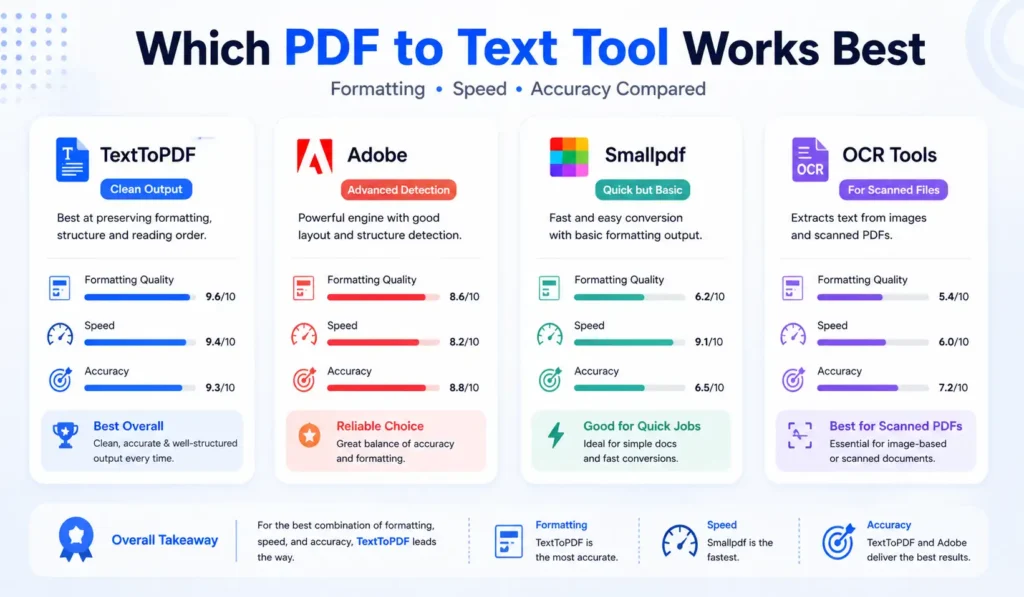
In this guide, you will not only see which tools handle formatting better in real situations, but you will also understand what actually happens behind the scenes when you convert a PDF into editable text.
Top PDF to Text Converters That Handle Formatting Better
Now comes the part most users look for, but instead of listing tools without context, it is more useful to understand how each one behaves in real scenarios where formatting actually matters.
TextToPDF.net
This tool focuses on clean extraction for standard PDF files where the structure is not overly complex, which makes it a practical option for users who want readable output without dealing with heavy interfaces or complicated workflows.
You can use TextToPDF.Net when you need to extract editable text from a PDF without breaking structure, using this PDF to text tool, especially for documents like notes, essays, and reports, where maintaining paragraph flow is more important than handling advanced layouts.
The output usually keeps text readable and structured, although, like any extraction tool, it may not handle tables or heavily designed documents perfectly.
Adobe Acrobat
Adobe provides one of the most reliable extraction systems because it has better structure detection and can handle complex layouts more effectively than most tools available online. This makes it useful for professional documents that require higher accuracy.
At the same time, the workflow feels heavier for quick tasks, and full features require a paid plan, which may not be suitable for users who just need fast extraction.
Smallpdf and iLovePDF
These tools are widely used because they offer a simple interface where you can upload a file and get results quickly without any setup. This makes Smallpdf and iLovePDF useful for quick tasks where speed matters more than perfect formatting.
The limitation becomes clear when formatting is important, because spacing and structure often break in longer or more complex documents.
Google Docs Method
This method works by uploading a PDF into Google Docs, where the platform automatically converts the file into an editable document that you can work with. It is free and sometimes produces decent results depending on the file.
However, the output is not consistent, and layout issues can appear frequently, especially when the original PDF contains mixed formatting or design elements.
OCR Tools for Scanned PDFs
These tools are required when your PDF does not contain selectable text, which means extraction is not possible using normal methods. They convert images into text by recognizing characters visually.
You can use this when extracting content from a scanned document before editing using this scanned PDF to text tool, although the output usually requires cleanup because errors in characters and spacing are common.
Real Comparison Between Tools
When you compare tools side by side, the difference becomes clearer because each one handles formatting in a slightly different way depending on the document type and structure.
| Tool | Formatting Quality | Speed | Best Use Case |
|---|---|---|---|
| TextToPDF.net | High for simple documents | Fast | Notes, essays, reports |
| Adobe Acrobat | High | Medium | Complex PDFs |
| Smallpdf / iLovePDF | Medium | Fast | Quick extraction |
| Google Docs | Medium | Medium | Free usage |
| OCR Tools | Low to Medium | Slow | Scanned PDFs |
The table gives a quick overview, but the real performance depends on your file because even the best tool can fail if the layout is too complex or inconsistent.
Why Formatting Breaks When Converting PDF to Text
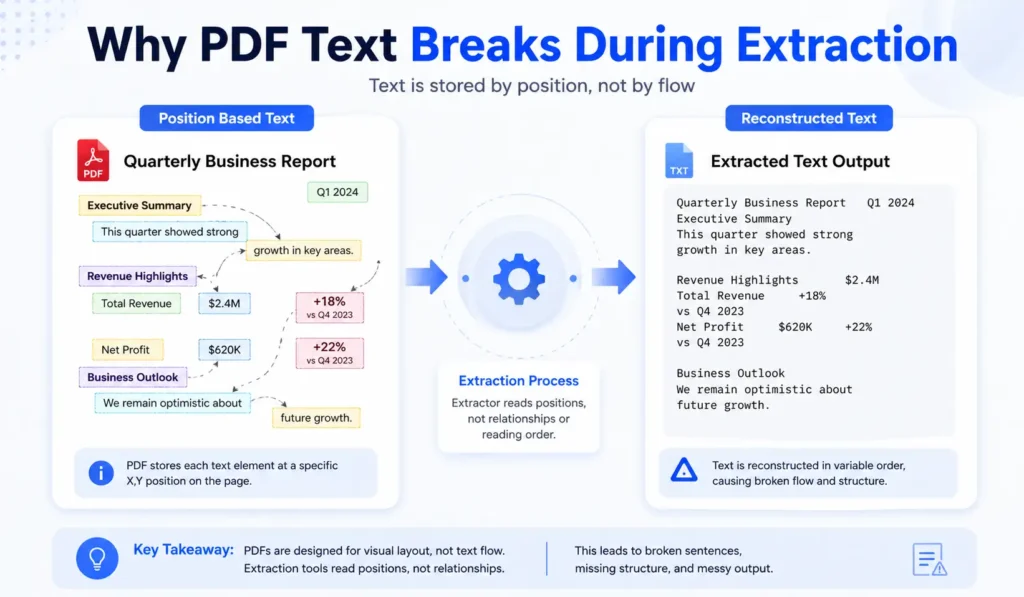
A PDF file does not store text as continuous sentences or flowing paragraphs like a normal document editor does, which is why extraction becomes tricky when tools try to rebuild that structure. Instead of storing text logically, the PDF places each word or character at a fixed position on the page using coordinates.
When a tool tries to extract this content, it reads those positions and attempts to rebuild sentences by guessing how words are connected, which is where the actual problem starts to appear. The tool is not reading a paragraph, it is trying to recreate one from scattered positions.
Because of this behavior, you may notice broken lines, missing spaces, or paragraphs that feel randomly split without any clear structure. These issues become more visible when the PDF contains complex layouts, multiple columns, or mixed elements such as tables and images.
If you want to understand this behavior in more detail and see practical fixes, you can check this common text to pdf problems guide.
What Preserving Formatting Really Means
Many tools claim that they preserve formatting, but the meaning of formatting is not the same for every user because expectations change based on the type of document being handled. Some people expect clean paragraphs and proper spacing, while others focus more on headings, lists, and structured readability.
The output you receive depends on two main factors, which are how the original PDF was created and how the tool interprets that structure during extraction. Even the best tools cannot fully rebuild complex layouts because they are working with visual positioning rather than logical structure.
Here is what most users usually expect when they talk about formatting:
| Element | Expected Result |
|---|---|
| Paragraphs | Clean readable flow |
| Line breaks | Proper spacing |
| Headings | Clearly separated |
| Lists | Basic structure retained |
What you need to understand here is that tools do not copy formatting directly, rather they are trying to recreate it based on patterns, which is why results can vary from one file to another.
Types of PDF to Text Converters
Before choosing any tool, it helps to understand how different types of converters work because the method used directly affects the quality of the output you receive.
Direct Text Extraction Tools
These tools work with digital PDFs that already contain selectable text, which means they can access the text layer directly and try to rebuild sentences from it. This method is usually fast and works well for simple documents that do not have complicated layouts.
However, the limitation appears when the file includes columns, tables, or mixed formatting, because the tool still has to guess how text should flow when reconstructing it.
OCR Based Tools
These tools treat the PDF as an image and try to detect characters visually, which is why they are used for scanned or image based documents where text selection is not possible. The process converts visual data into text, which means accuracy depends heavily on image quality.
If your file does not allow text selection and you cannot copy anything from it, this is the method you need to use, especially when your scanned material needs to become searchable and editable before you can use it with this scanned PDF to text with OCR.
Hybrid Tools
Some tools combine both extraction and OCR methods to handle mixed documents that contain both text layers and image based sections. This approach improves flexibility, although results still depend on how complex the document structure is.
How to Get Better Formatting Results
You may think the tool alone controls the output, but in reality, the way you approach the process plays a big role in the final result.
Step 1: Check the Type of PDF
Before doing anything, you need to understand whether your PDF is digital or scanned because this decides the method you should use.
- Digital PDF allows text selection
- Scanned PDF behaves like an image
If you skip this step, you may end up using the wrong method and getting poor results even from a good tool.
Step 2: Choose the Right Method
Once you know the file type, the next step becomes clearer because each method works best in specific conditions.
- Use direct extraction for digital PDFs
- Use OCR for scanned PDFs
Trying OCR on a digital file can actually reduce quality because it converts already clean text into image based recognition.
Step 3: Clean the Extracted Text
Even when the tool works well, the output still needs some cleanup because no system can fully rebuild complex layouts perfectly.
Common fixes include:
- Adjusting line breaks
- Removing extra spaces
- Fixing paragraph flow
- Correcting minor text errors
This step improves readability and makes the content usable for editing or publishing.
Common Mistakes People Make
Many users expect perfect results without understanding how the process works, which leads to frustration even when the tool is performing correctly.
Here are some common mistakes you should avoid:
- Using OCR on a digital PDF that already has a text layer
- Expecting perfect formatting in complex layouts
- Ignoring cleanup after extraction
- Switching tools repeatedly without understanding the file type
These mistakes usually lead to the same problem again and again because the root issue is not being addressed.
You can also check our curated list of best media and PDF hosting platforms.
When PDF to Text Is Not the Right Choice
There are situations where extraction is not the best option because the structure of the document depends heavily on layout rather than text flow.
You should avoid using PDF to text when:
- The file contains heavy design elements
- The document is full of tables and structured data
- The layout itself carries meaning, such as brochures or forms
In such cases, manual editing or alternative formats may give better results than trying to extract text directly.
Conclusion
By now, you can see that no single tool can guarantee perfect formatting in every situation because the limitation comes from how PDFs are built rather than how tools function.
The main thing is to understand your file first, choose the right method, and then apply a small amount of cleanup to get usable output that actually serves your purpose.
If your document is simple and you want clean, readable text without dealing with complex workflows, using a focused tool like this PDF to text converter gives a more practical and consistent result compared to trying multiple tools without a clear approach.
FAQs
Why does my PDF text look perfect on screen, but break after copying?
A PDF shows text as positioned elements, which means what you see is a visual layout rather than a true paragraph structure. When you copy text, the tool tries to rebuild sentences from positions, and this is where spacing and line flow can break, especially in files with columns or mixed content.
Which method should I use for scanned PDFs?
A scanned file does not have a selectable text layer, so direct extraction will not work even if the tool looks fast. In this case, you need OCR so the system can read characters from images, which is why using this scanned PDF to text tool becomes necessary before you try to edit or reuse the content.
Can any tool keep formatting exactly the same?
No tool can fully preserve complex layouts because the original file does not store text as flowing content. Tools can rebuild paragraphs and spacing to a good level for simple documents, but tables, columns, and design heavy files usually need manual adjustment after extraction.
How can I improve the quality of the extracted text?
Better results come from using the right method and doing a quick cleanup after conversion. Start by checking the file type, use extraction for digital PDFs and OCR for scanned ones, then fix line breaks and spacing so the content becomes readable and ready for editing.


